Unlock Tool: Free Offline Download
Getting locked out of your smartphone due to a forgotten pattern, password, or Google account verification can bring everything to a halt. In situations like this, having access to a reliable utility makes all the difference. Many users look for a free, offline unlock tool setup that can perform resets directly from a PC without needing an active internet connection.
In this guide, we will walk you through what this utility is, how the interface works, and a simple step-by-step walkthrough on how to use it safely.
What You Need Before Starting Unlock Tool Offline
Before attempting to perform any reset or unlock function, make sure you have the following ready on your computer:
- A Reliable Windows PC: Most utility tools are built to run on Windows 10 or 11 (64-bit recommended).
- Proper USB Drivers: You must install the correct chipset drivers for your specific phone (such as MTK VCOM drivers, Qualcomm USB 9008 drivers, or brand-specific drivers like Samsung USB).
- High-Quality USB Cable: Always use an original or high-speed data cable to prevent disconnections midway.
- Battery Charge: Ensure your mobile device has at least 50% battery to prevent it from shutting down during an active process.
Step-by-Step Guide: How to Use the Unlock Tool
Step 1: Install Required Drivers
Without proper drivers, your computer cannot communicate with the device while it is in recovery or download mode. Download and install:
- MediaTek (MTK) USB Drivers (if your phone uses an Helio or Dimensity chip).
- Qualcomm HS-USB QDLoader 9008 Drivers (if your phone uses a Snapdragon chip).
Tip: Restart your PC after installing drivers to ensure they load properly.
Step 2: Launch the Program
- Extract the downloaded setup files to a clean folder on your desktop.
- Right-click the application icon and select Run as Administrator.
- If using an offline loader, wait for the dashboard to initialise its local database.
Step 3: Select Your Phone Brand and Model
Once the main interface opens:
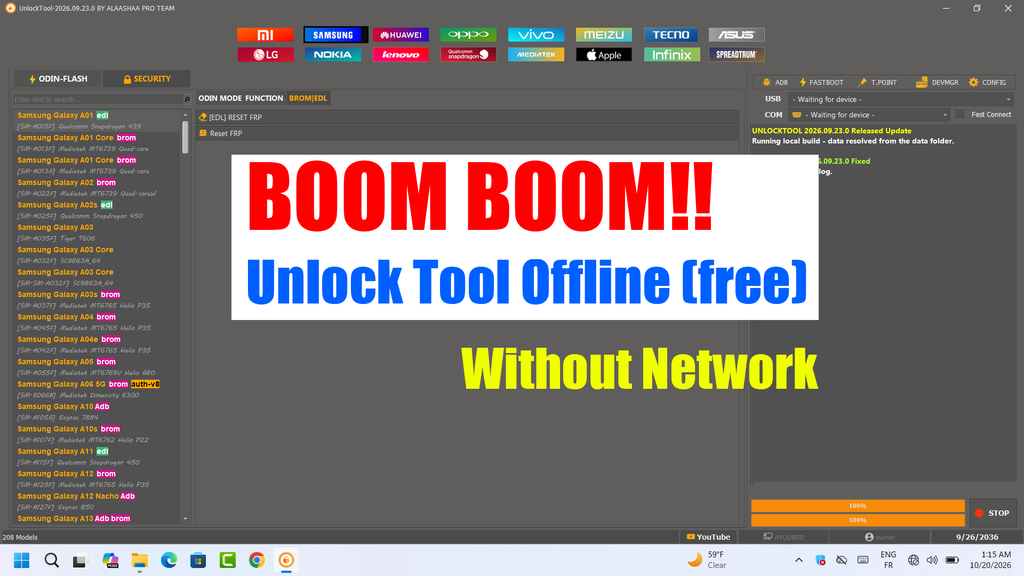
- Look at the top navigation bar and select your phone’s brand (e.g., Samsung, Xiaomi, Vivo, Oppo, etc.).
- Use the search bar on the left panel to find your exact Model Number (for example, Samsung Galaxy A03 or Redmi 9A).
- Double-check the hardware variation to ensure it matches your device chipset (e.g., MTK vs. Qualcomm).
Step 4: Choose the Desired Function
Select the task you want to perform from the function menu:
- Reset FRP: Used to remove the Google Account verification screen after a factory reset.
- Factory Reset / Format: Clears the pattern, PIN, or password along with user data.
- Remove Account: Bypasses brand-specific cloud lock screens.
Step 5: Connect Your Device in the Correct Mode
The tool needs the phone to be in a specific connection mode to communicate with its internal memory:
- For MediaTek (BROM Mode):
- Turn the phone completely off.
- Hold both Volume Up + Volume Down buttons together.
- Plug in the USB cable while holding the buttons until the software detects the port.
- For Qualcomm (EDL / 9008 Mode):
- Power off the phone.
- Connect the device using the designated key combination or EDL test points.
- For Test Mode (MTP/ADB):
- Leave the phone powered on at the emergency dial screen, dial *#0*# (on supported models), and connect the cable.
Step 6: Execute the Command
- Click the Start / Execute button inside the software.
- Watch the live log screen on the right side of the interface.
- Wait until you see a green confirmation message saying Operation Complete or 100% OK.
- Disconnect the USB cable and hold the Power button to reboot your phone.
Important Safety Tips
- Never Disconnect Mid-Process: Unplugging the USB cable while the tool is writing or wiping partitions can corrupt the device firmware.
- Verify Your Exact Model: Flashing commands meant for an Exynos model on a Snapdragon model can cause severe software issues.
- Back Up Data First: Whenever possible, remember that almost all unlock and reset functions completely erase local files, photos, and contacts.
Also Read:
FAQ’
1. Is using an unlock tool free safe for my computer?
Finding a free unlock tool from unverified sources can be risky, as third-party packages may contain unwanted files or modified system files. Always scan your downloads with updated security software and run them in a controlled environment.
2. Can I use the tool completely without the internet?
True offline tools only perform actions that do not require remote server tokens. While basic partition formatting and standard resets can run offline, modern security patches often require internet access to fetch verified tokens.
3. What should I do if the software does not detect my phone?
If the device manager displays a yellow warning icon or fails to show a COM port, the issue is almost always a driver problem. Reinstall the specific USB drivers for your phone’s processor (MTK or Qualcomm) and try a different USB port on your PC.
4. Will this process erase my personal data?
Yes. Bypassing lock screens, patterns, and Google FRP protection wipes user partitions to restore the phone to factory settings.