Motorola Edge 60 Pro MDM File Free Download
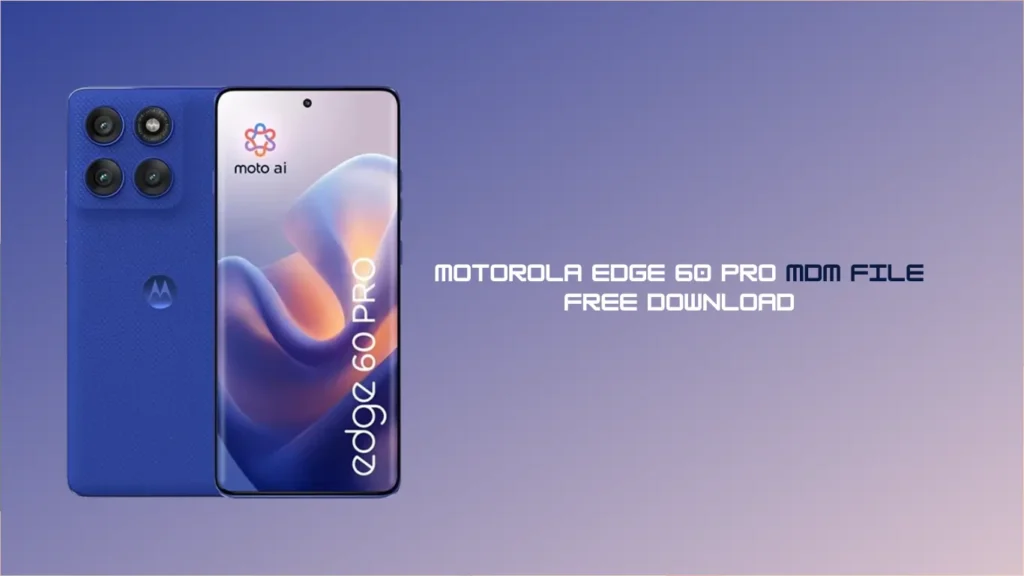
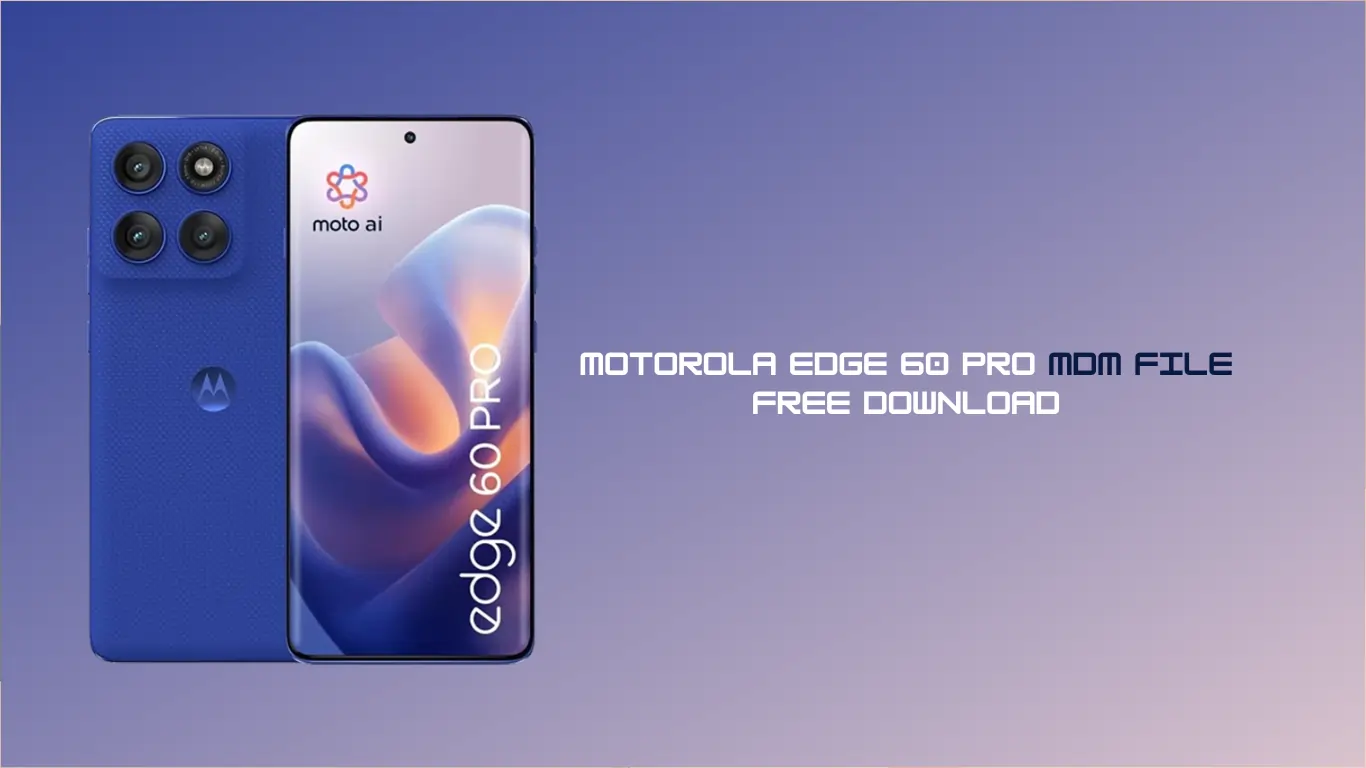
If you’ve recently purchased a second-hand Motorola Edge 60 Pro or received one from a corporate workplace, you might have encountered a frustrating barrier: the MDM (Mobile Device Management) lock. This security feature is designed for companies to manage and restrict device usage, but it can be a major headache for individual users who want full control over their hardware.
In this guide, we’re providing information on the Motorola Edge 60 Pro MDM file free download and a step-by-step walkthrough on how to bypass these restrictions safely.
What is Motorola Edge 60 Pro MDM?
MDM stands for Mobile Device Management. For the Motorola Edge 60 Pro, this is a protocol used by organisations to enforce security policies, track the device, and restrict certain apps or settings.
When a device is “MDM locked,” you might find that you cannot factory reset the phone, access the Google Play Store, or change certain system settings. To regain full access, you need a specific MDM removal file that communicates with the device’s bootloader or system partition to bypass the enrollment.
Why You Need the Motorola Edge 60 Pro MDM File
Using the Motorola Edge 60 Pro MDM bypass file is often the only way to:
- Remove corporate supervision.
- Unlock restricted features (Camera, Bluetooth, or Wi-Fi).
- Perform a clean factory reset without the lock returning.
- Enable USB Debugging and OEM Unlocking.
Preparation: Before You Begin
Removing an MDM lock is a technical process. Ensure you have the following:
- A Windows PC: Most bypass tools are Windows-based.
- Original USB Cable: A stable connection is vital to avoid “bricking” the device.
- Drivers: Ensure the latest Motorola USB Drivers are installed on your PC.
- Charge: Ensure your phone has at least 50% battery.
How to Use the Motorola Edge 60 Pro MDM File
Note: This process typically requires a professional tool such as UnlockTool, Miracle Box, or TFM Tool Pro.
- Download the File: Search for the latest Motorola Edge 60 Pro MDM firmware or scatter file from a reputable source (ensure it matches your specific model number).
- Enter Fastboot Mode: Turn off your device. Press and hold the Volume Down + Power button until the fastboot logo appears.
- Connect to PC: Plug your device into the computer.
- Run the Unlock Tool: Open your preferred flashing tool. Select the “Motorola” tab and find the “Edge 60 Pro” model.
- Load the MDM File: Import the MDM bypass file into the tool.
- Execute: Click on “Remove MDM” or “Flash.” The process usually takes 2-5 minutes.
- Reboot: Once the tool says “Operation Finished,” your device will reboot without the corporate lock.
Read Also:
- TMT TOOL PRO V3.0.0.3 Latest Free Download
- All Box&Dongal Activation here
- Nothing Phone 3a Pro OS 3.2 Frp Remove UnBrick Firmware
Safety Disclaimer
Bypassing MDM locks should only be done on devices you legally own. Modifying system firmware can void your warranty. Always back up your data before attempting any flash procedure.
FAQ,
1. Will removing the MDM lock delete my data?
Yes. Most MDM removal processes involve a factory reset or flashing the system partition, which wipes all user data. Always back up your photos and documents first.
2. Is the Motorola Edge 60 Pro MDM file free?
Many community forums provide the files for free. However, the software tools used to “flash” the file (like UnlockTool) often require a paid license or credit.
3. Will the MDM lock return after a factory reset?
If you use a high-quality Motorola Edge 60 Pro MDM bypass file that clears the “Config” partition, the lock should be permanently removed. If you only use a temporary bypass, the lock may return after a reset.
4. Do I need to unlock the bootloader?
In many cases, yes. Most MDM removal files require the bootloader to be unlocked to allow the modification of system files.
5. Can I update my phone after removing MDM?
Generally, yes. However, if the MDM was removed via a “patch,” a major Android OS update might revert the changes. It is recommended to check for community feedback before updating.
Conclusion
The Motorola Edge 60 Pro is a powerful device, and it’s a shame to have its potential capped by corporate software. By downloading the correct Motorola Edge 60 Pro MDM file and following the steps above, you can enjoy your smartphone with total freedom.